Loading...
Registration Guide
Before You BeginStart Your RegistrationNot a Dragonfly Wellness Patient?Using the Calendar Select to Input DOBVerify Your InformationCreate Your PasswordVerify Your EmailTrouble Finding Your Verification Email?Send a New Verification CodeReconnect Patient Account After an Error
1
Before You Begin
Before attempting to make a Dragonfly Patient Account, make sure you have your Medical Cannabis Card (MCC) and have had your consultation with our pharmacist. You won't be able to create an account before completing those steps. For help with getting your MCC, please vist the state EVS website. You can sechedule a consult with our pharmacist, in-person or online.
Make sure you have the following information before you attempt to create an account:
- The email associated with your EVS account. If you no longer have access to that email, or would like to use a different one for any reason, you will need to contact your pharamacy to make sure they have the correct email.
- Your PAT#
- Your date of birth
Once you're ready to begin, go to the Registration page. You can also reach that page by going to the Login page and clicking the Get Started button under the New Patient section.
2
Start Your Registration
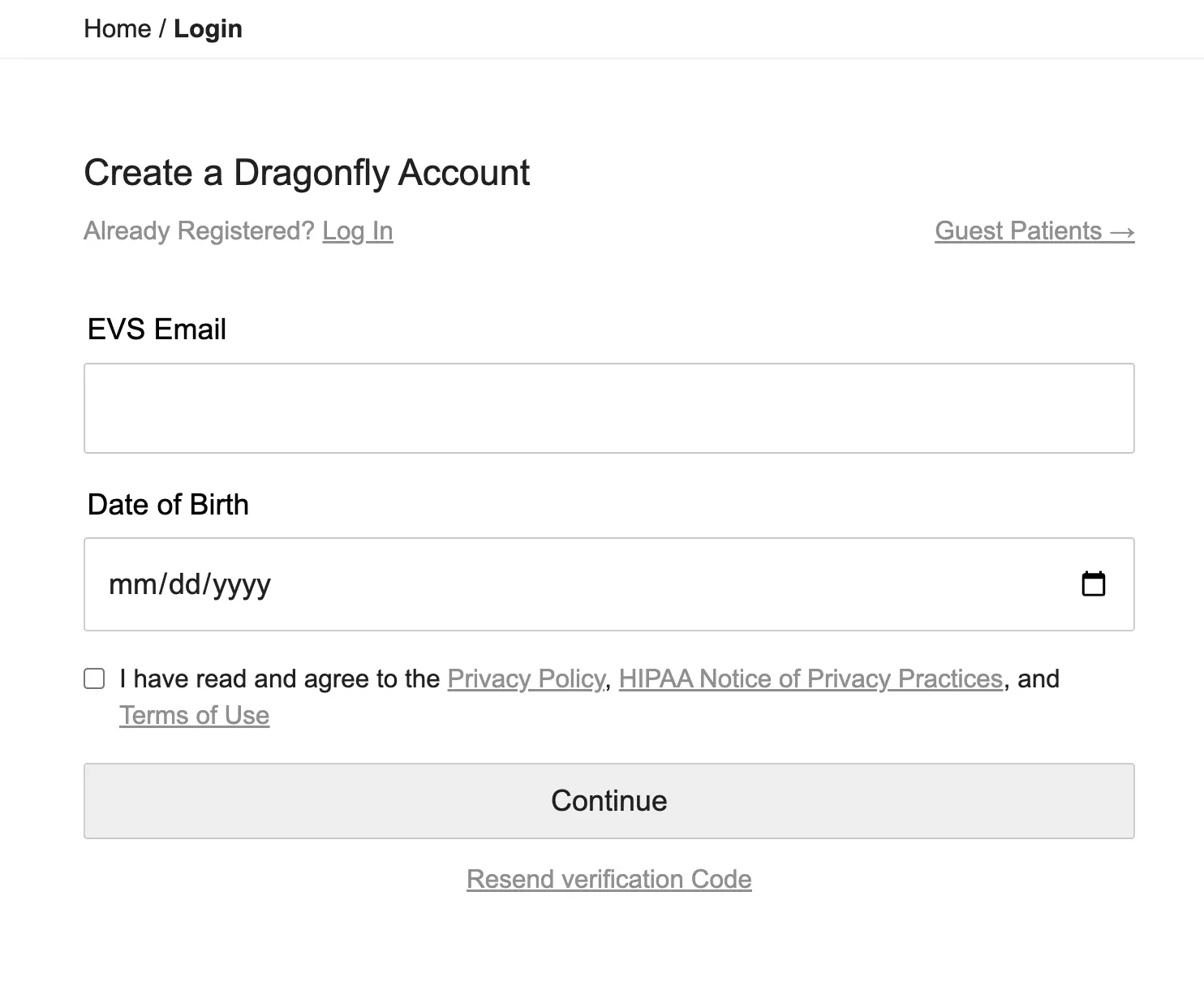
If you're already a Dragonfly Wellness patient, start by inputting your EVS email and birth date under the Create New Account section.
Not a Dragonfly Wellness Patient?
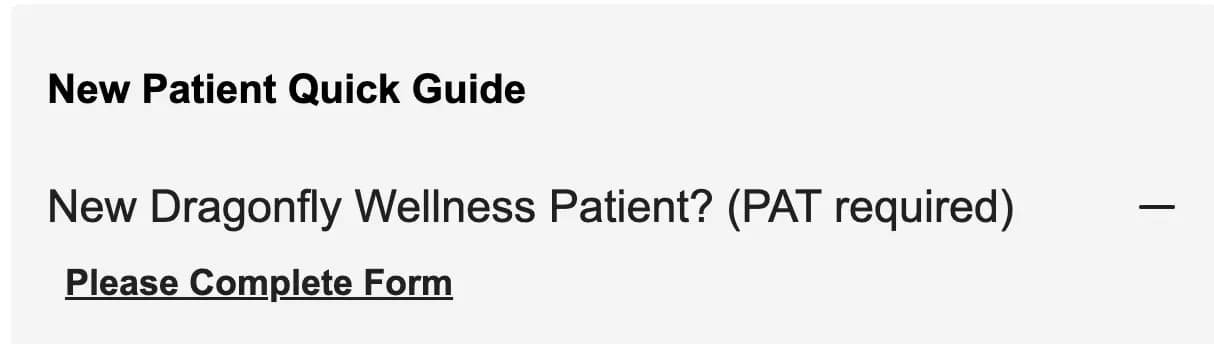
If you've never been to the Dragonfly Wellness pharmacy before, please select the New Dragonfly Wellness Patient? (PAT required) heading in the New Patient Quick Guide section and select the Please Complete Form button.
You'll need the following information to fill out the form:
- PAT#
- Email address
- Phone number
- Where you heard about our pharmacy
We'll also ask if you've had a pharmacist consultation. If you haven't yet, you can sechedule one in-person or online here. We do not charge for consultations.
Click Submit. We will contact you once your patient status has been verified, and you can continue with your registration then!
Using the Calendar Select to Input DOB
Some patients find choosing their birthdate using the calendar selection is difficult, which can cause issues with creating your account. Please follow these steps to correctly choose your birthdate (this example uses the date December 17th, 2002):
1. Click the current month and year next to the down arrow at the top of the calendar dropdown.
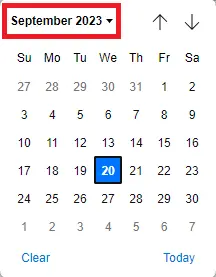
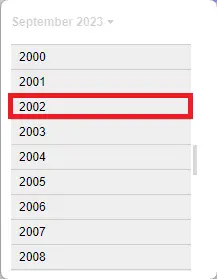
2. Scroll up until you find your correct birth year.
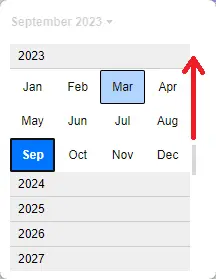
3. Click on your birth year to open the month selection.
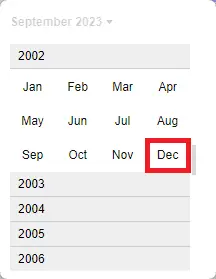
4. Select your birth month.
5. Select your birthday.
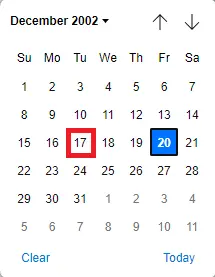
This will automatically populate the Date of Birth field with your birthdate in the correct format. You can also type your date of birth in MM/DD/YYYY format. If you notice after using the calendar that your date of birth is incorrect, you can fix it by following the steps above or by selecting the incorrect day, month, or year and typing in the correct information.
Please read our Privacy Policy, HIPAA Notice, and Terms of Use and select the checkboxes to agree with those policies.
Click Continue.
3
Verify Your Information
The system will attempt to find your patient account at Dragonfly Wellness to connect it to your new online account. You'll see your information displayed like the image below. Note that the information has been partially obscured to protect your privacy.
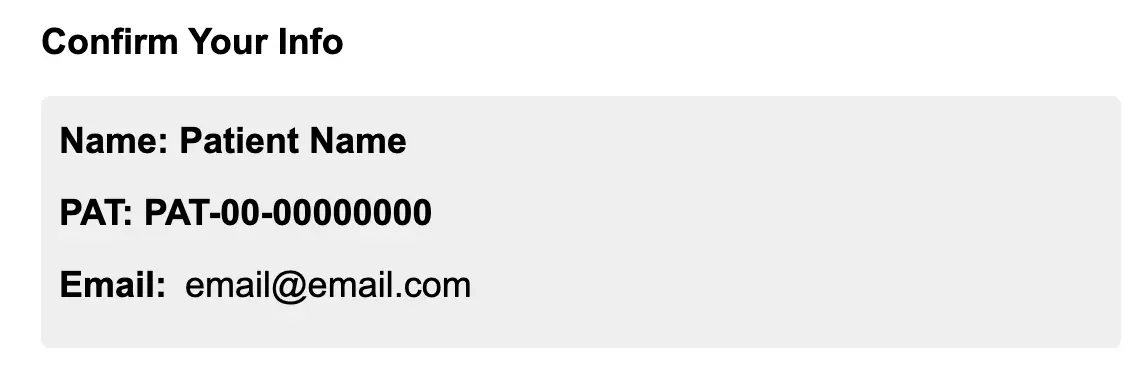
Please make sure your name, PAT#, and email are correct! If the system cannot find your Dragonfly Wellness Patient account, you will be prompted to fill out a new patient form. If any of the displayed information is wrong, or if you are already a Dragonfly Wellness Patient, see the Incorrect Personal Information section below.
Incorrect Personal Information
If the information displayed is incorrect, please select the Edit button to go back to the registration page. Enter your EVS email and date of birth again and double check that you've entered them correctly. If you are having trouble using the calendar select, we have a guide here.
If after entering your information again, you continue to get incorrect results, please contact us at or . We may have some of your information entered incorrectly in our system.
If you'd like to get text notifications about your orders, please select the checkbox to opt into our SMS notifications, and let us know if you have a prefered name you'd like us to use.
Once you're sure all the information on this page is correct, please click Confirm.
4
Create Your Password
Now you'll need to select a password. Make sure you select a unique password that you will remember. Your password must contain at least:
- eight (8) characters
- one (1) uppercase letter
- one (1) lowercase letter
- one (1) special character
- one (1) number
Make sure both passwords match. You can click the eye icons at the end of the text fields to view the password to make sure it's correct.
Click the Submit button.
Note:Your login has now been created, but your account will not be available until you verify your email. You can come back later to verify if you'd like, but unverified logins will be deleted after three weeks. If your login has been deleted, simply recreate it using this guide.
5
Verify Your Email
Finally, you'll need to go to your email account to get the four (4) digit verification code we've sent you. That email will be from no-reply@dragonflywellness.com.
Trouble Finding Your Verification Email?
Your verification code will expire 24 hours after being sent. If that period has expired, you'll need to request a new code. Click here to see instructions.
If you can't find your verification code email, the first thing to do is check your spam folder. You can also search your inbox for no-reply@dragonflywellness.com.
Make sure you haven't blocked our no-reply@dragonflywellness.com email, or you won't recieve your verification code. If you still can't find your verification email, we may be unable to send emails to your address. Please contact us at or to change your email.
Send a New Verification Code
To request a new verification code, you will need the email associated with your account.
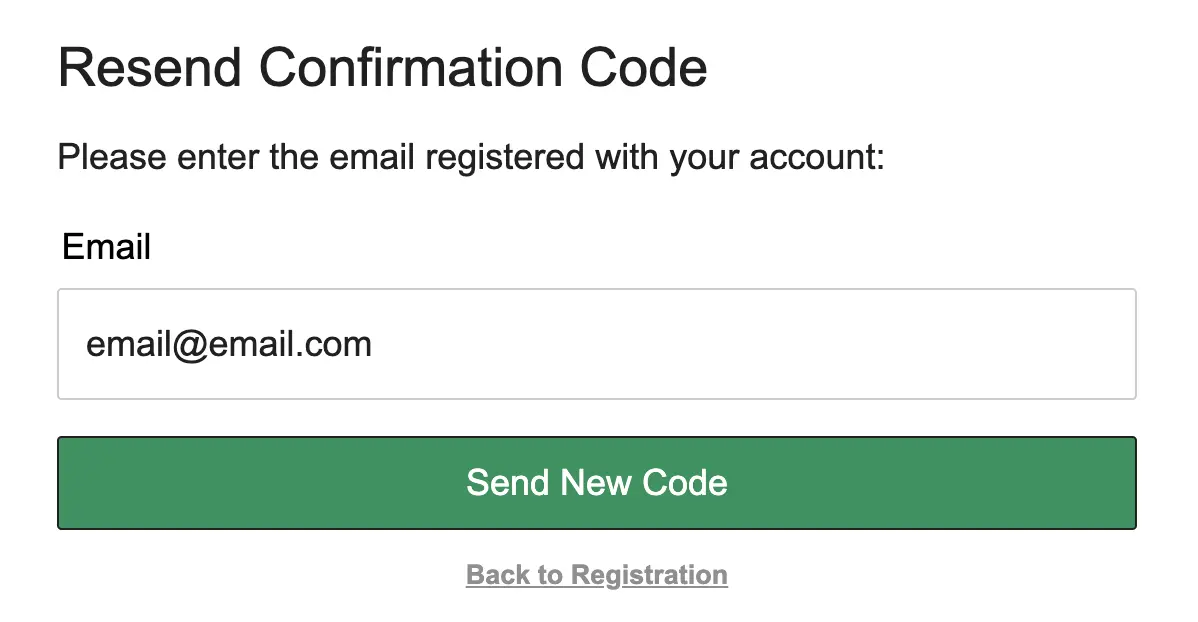
On the Registration page click the Resend verification Code? link. This will open a form to request the new code. Enter your email address and click Send New Code.
A new verification email will be sent to your email. To enter it, go to the Login page and sign in. You'll then be prompted to enter your code.

Copy the code and enter it into the field for verification and click Verify.
Note:You need to enter the code within 24 hours! If you don't, you'll need to get a new code!
!
Reconnect Patient Account After an Error
Sometimes, a connection error will result in your online account being successfully created without a profile being generated. If this happens to you, when you next try to sign in you will see this:
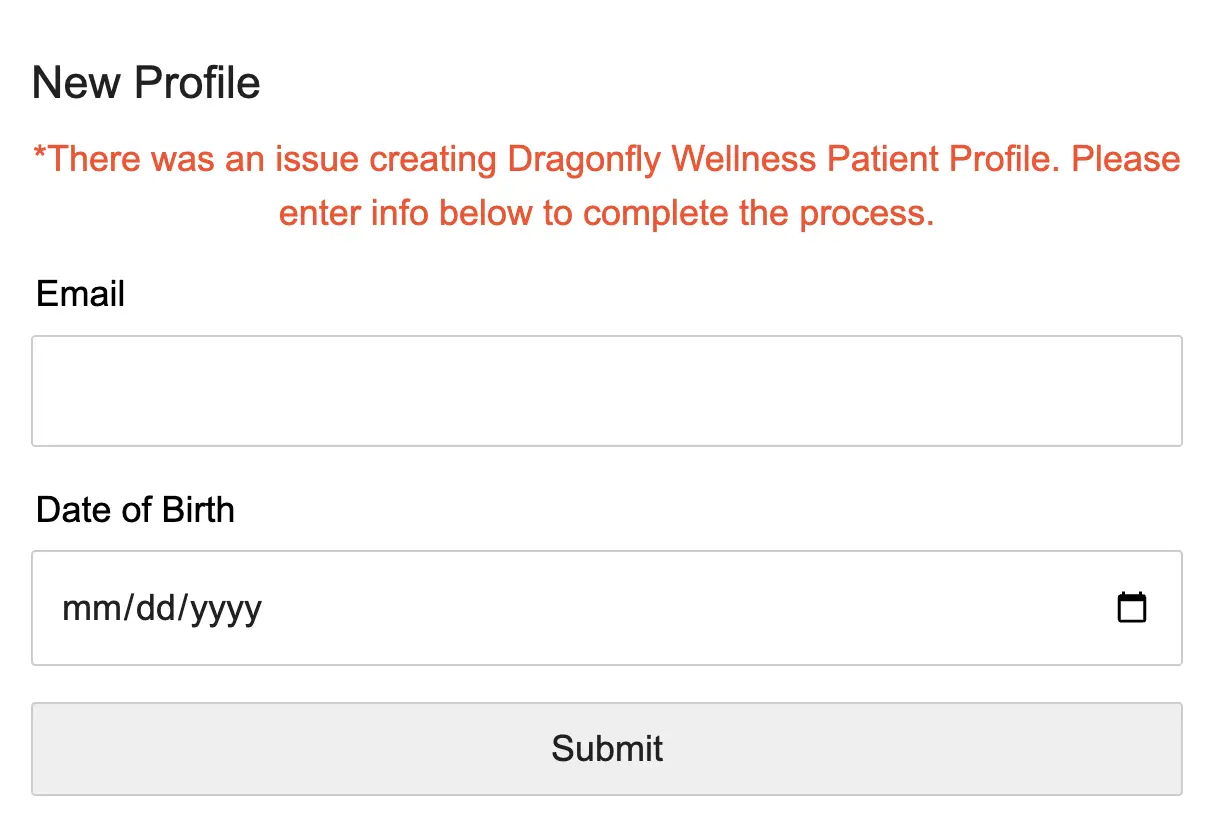
Don't worry! All you need to do is enter your EVS Email and DOB and submit it. The system will locate your Dragonfly Wellness Patient account and ask you to verify your information like you did above. Once you've clicked Confirm, your profile will be generated and your online account will be ready!
That's it! You are now registered with your Dragonfly Wellness online account!
Vist your Profile page to learn about our loyalty program, see your account information, and find your Patient Access QR code, which you can use to sign in faster at the Dragonfly Wellness pharmacy.
Stay Connected
Sign up for exclusive offers and discounts, and be among the first to learn about our new products.